
"On a production Linux host, processes are not merely background lines in a terminal—they are the active execution state of the entire operating system. In security operations and incident triage, if you cannot trace, prioritize, isolate, and terminate processes with surgical precision, you cannot defend the system."
At any given moment, a modern Linux system runs hundreds—frequently thousands—of concurrent processes. A process is simply a running program or execution thread that consumes system resources: CPU clock cycles, RAM pages, disk I/O channels, network sockets, and file descriptors.
In day-to-day operations, processes range from lightweight ephemeral shell commands (like ls or grep) to persistent daemons such as web servers (nginx, apache2), relational databases (postgresql, mariadb), system logging utilities, or graphical desktop components.
For cybersecurity assurance leads, system administrators, and SOC analysts, mastering Linux process management is an essential operational discipline. Whether triaging an anomalous CPU spike caused by an illicit cryptocurrency miner, tracing a reverse shell spawned by an exploited web application, or managing background network assessment tools on Kali Linux, having an unshakeable command of process telemetry is non-negotiable.
Core Operational Scope
In this field guide, we examine:
Process IDs (PIDs), snapshot inspection with ps, pipeline filtering with grep, real-time dynamic telemetry via top, CPU priority scheduling with nice and renice, POSIX signal dispatching (SIGTERM vs SIGKILL), shell job control (&, bg, fg), task automation with at, and 7 practical Kali Linux security labs.
1. What Is a Process and Why Does the Kernel Assign a PID?
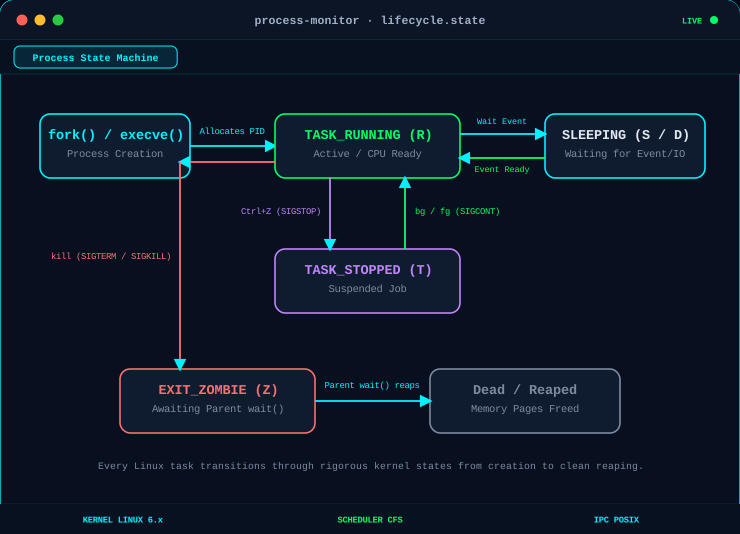
Whenever an operator executes a binary, script, or built-in command in Linux, the kernel allocates an execution context, assigns memory pages, and registers a unique integer handle known as a Process ID (PID).
For instance, when you open a bash terminal and run:
The Linux kernel uses the fork() and execve() system calls to create a child process specifically to execute ls, execute the directory read, print the output to standard out (stdout), and then terminate, freeing its allocated resources.
The same architectural model applies to persistent, mission-critical infrastructure:
- Web Daemons: Nginx, Apache HTTP Server, Caddy
- Database Engines: PostgreSQL, MariaDB, Redis
- Security Assessment Platforms: Metasploit Framework (
msfconsole), Wireshark, Burp Suite, Wazuh EDR agents - Network Infrastructure: OpenSSH server (
sshd), DNS resolvers, routing utilities
Because the kernel references every task by its numerical PID, all management actions—whether inspecting memory footprint, adjusting scheduling priority, or terminating an unresponsive or rogue process—require locating and operating on that PID.
2. Viewing Active Processes with ps (Terminal Snapshot)
The primary utility for viewing process state in Linux is ps (Process Status). Running ps with no extra arguments provides a basic snapshot of processes currently attached to the active terminal/session.
Let's break down what each column in this baseline output signifies:
| Column Header | Technical Meaning | Operational Value |
|---|---|---|
PID |
Process ID | The unique numerical identifier assigned by the Linux kernel. |
TTY |
Controlling Terminal | The pseudo-terminal device (e.g., pts/0) controlling the process. Background daemons show ?. |
TIME |
Cumulative CPU Time | Total processor time (hours:minutes:seconds) consumed by the process since its launch. |
CMD |
Command Line | The name of the executable or script command that initiated the process. |
3. Global System Visibility: Hunting Processes with ps aux & Pipelines
While plain ps displays only the current shell's immediate children, defenders and administrators need global visibility across all users, service accounts, and detached background daemons. To achieve this, we use the standard BSD syntax:
The flags break down into:
a: Show processes for all users, not just the current session.u: Display the user-oriented format, revealing ownership (USER),%CPU, and%MEM.x: Include processes without an attached controlling terminal (daemons, background services, scheduled workers).
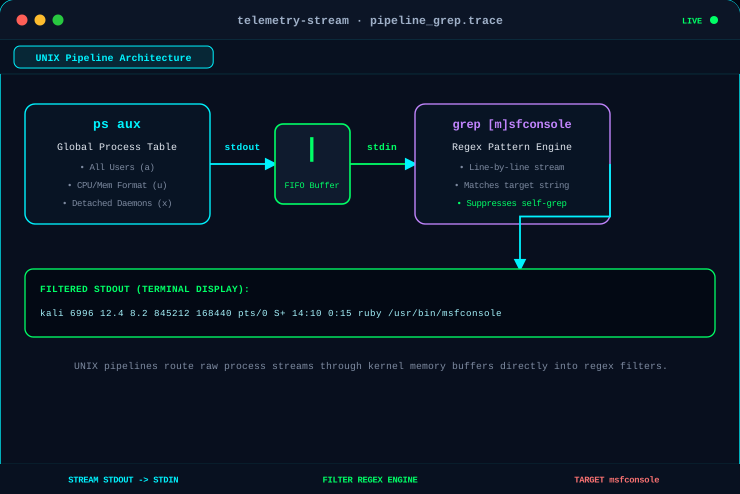
Because modern operating systems run hundreds of processes simultaneously, pipe-filtering through grep is the most efficient way to isolate a specific target binary or suspicious payload.
In the example above, the UNIX pipe (|) routes the standard output stream of ps aux into the standard input stream of grep msfconsole, instantly revealing that Metasploit (PID 6996) is executing under user kali, consuming 12.4% CPU and 8.2% RAM.
SOC Analyst Pro-Tip: Filtering Out the Grep Process
Notice how grep matches its own search command (PID 7021 above). To suppress the grep process cleanly without piping to grep -v grep, enclose the first letter in square brackets:
ps aux | grep [m]sfconsole
4. Real-Time Dynamic Telemetry with top
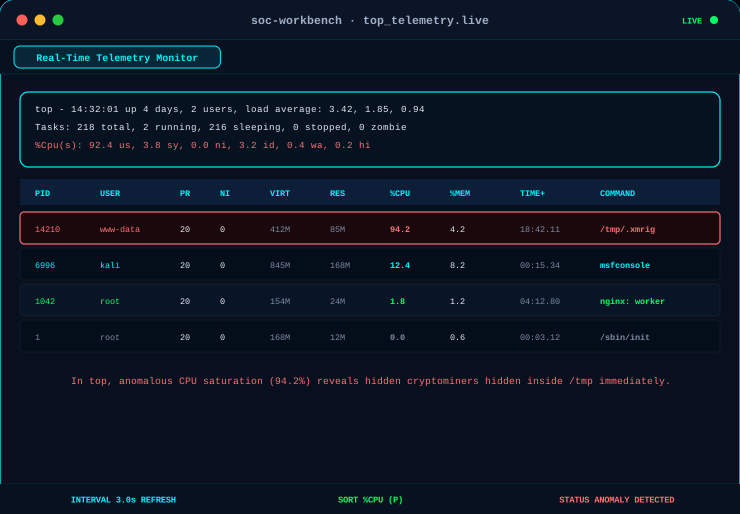
While ps provides a static point-in-time snapshot, dynamic situations—such as a denial-of-service attack, memory leak, or runaway scanner—require continuous live telemetry. This is where top (Table of Processes) excels.
Unlike ps, the top interface continuously refreshes its telemetry every 3.0 seconds by default. It provides real-time visibility into:
- System Health: System uptime, user session count, and 1-minute, 5-minute, and 15-minute load averages.
- Task Summary: Total count of tasks categorized as running, sleeping, stopped, or zombie.
- CPU States: User space percentage (
%us), system kernel space (%sy), nice priority time (%ni), idle time (%id), and I/O wait (%wa). - Physical & Swap Memory: Total, free, used, and cached memory buffers.
- Process Roster: Live ordered list of processes ranked by current CPU or RAM utilization.
Essential interactive shortcuts within top:
q: Exittopcleanly.hor?: Open interactive help and keyboard command reference.k: Send a signal to a process directly (prompts for PID and signal number).r: Renice a process directly from within the monitor interface.M: Sort the process roster by resident memory consumption (%MEM).P: Sort the process roster by CPU percentage (%CPU).
5. CPU Scheduling Priority: Understanding nice
On a multi-tasking Linux kernel, multiple processes continuously compete for CPU time slices. When executing a computationally demanding task—such as an automated vulnerability audit, hash cracking with Hashcat, or mass log ingestion—you may wish to throttle its CPU impact so that mission-critical services remain responsive.
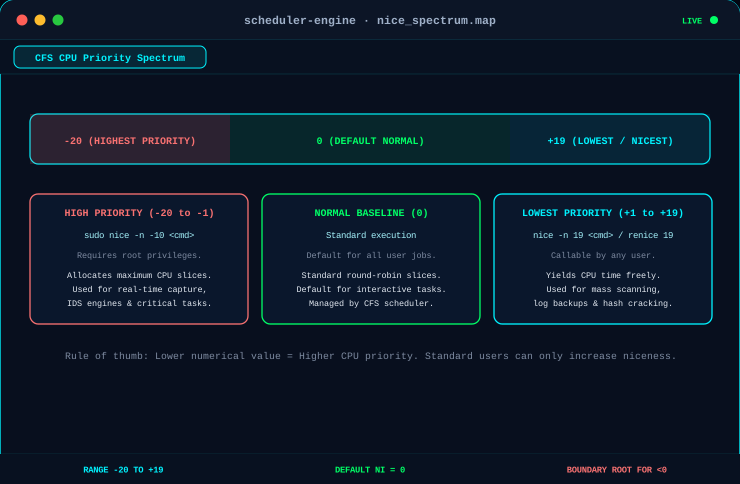
Linux manages this through the nice value scale:
The Inverted Priority Rule
Lower nice value = Higher CPU priority.
Higher nice value = Lower CPU priority.
A nice value of +19 is as "nice" as possible to other processes, yielding CPU cycles freely. A nice value of -20 demands maximum CPU attention.
To launch a process with a lower priority (higher nice value):
To grant a process higher priority (a negative nice value), elevated administrative privileges are required to prevent unprivileged users from starving the kernel:
6. Dynamic Runtime Priority Tuning with renice
The nice command is utilized when launching a program. But what if a resource-heavy process is already executing and begins degrading host responsiveness?
The renice command modifies the priority of an already active process using its PID without restarting the service:
This immediately transitions PID 6996 to a nice value of 19, freeing up CPU capacity for interactive user commands and critical daemons.
7. Process Termination & POSIX Signals: kill Demystified
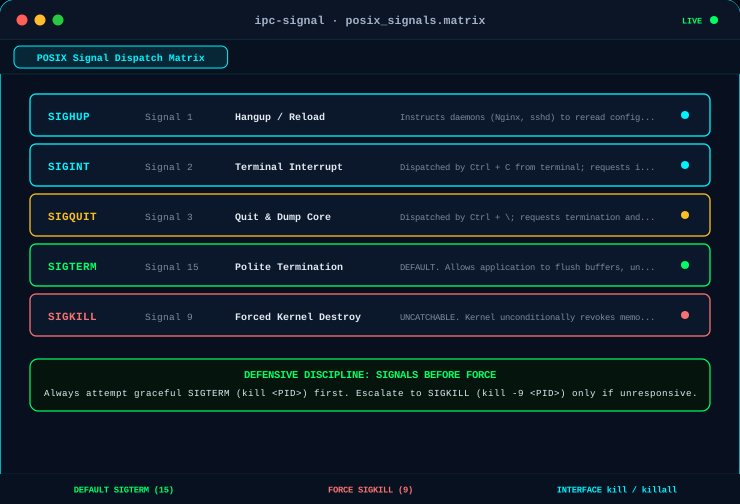
Contrary to common assumption, the kill command does not merely destroy processes—it transmits POSIX inter-process communication (IPC) signals to them. The default signal dispatched by kill <PID> is SIGTERM (Signal 15).
| Signal Name | Signal Number | Technical Purpose | Process Handling Behavior |
|---|---|---|---|
SIGHUP |
1 | Hangup / Configuration Reload | Tells daemons (e.g. Nginx, sshd) to reload config files without dropping connections. |
SIGINT |
2 | Terminal Interrupt | Generated by Ctrl + C in the terminal to request immediate interactive interruption. |
SIGQUIT |
3 | Terminal Quit & Core Dump | Generated by Ctrl + \. Triggers process termination and produces a debugging core dump. |
SIGTERM |
15 | Polite Termination Request | Default. Asks the application to terminate gracefully, flush buffers, and close sockets. |
SIGKILL |
9 | Kernel-Level Forced Termination | Uncatchable. Bypasses application logic; kernel immediately destroys memory structures. |
Graceful Termination (SIGTERM) vs. Forceful Abort (SIGKILL)
Under standard operations, always issue kill <PID> (which sends SIGTERM):
SIGTERM gives the application time to save unsaved state, flush dirty memory buffers to disk, remove temporary lockfiles in /tmp or /var/run, and close network sockets cleanly.
When to Escalate to SIGKILL (-9)
If an application becomes completely hung in an uninterruptible state, or if you are dealing with an active reverse shell or suspected malware binary that catches and ignores SIGTERM, escalate to SIGKILL:
kill -9 <PID>
Because SIGKILL cannot be handled or ignored by any process, the kernel immediately revokes its memory pages. However, it prevents cleanup, which may lead to corrupted files or abandoned socket locks.
8. Mass Process Termination by Name: killall
When you need to terminate an application that spawns multiple worker threads or child processes, hunting down individual PIDs becomes inefficient. The killall utility targets processes directly by binary name:
Operational Risk Warning
Exercise strict discipline when using killall with elevated root privileges. If you run sudo killall python3 on a host that runs backend automation services or API gateways, you will terminate every Python process system-wide, causing immediate service disruption.
9. Terminal Job Control: Backgrounding (&, bg) and Foregrounding (fg)
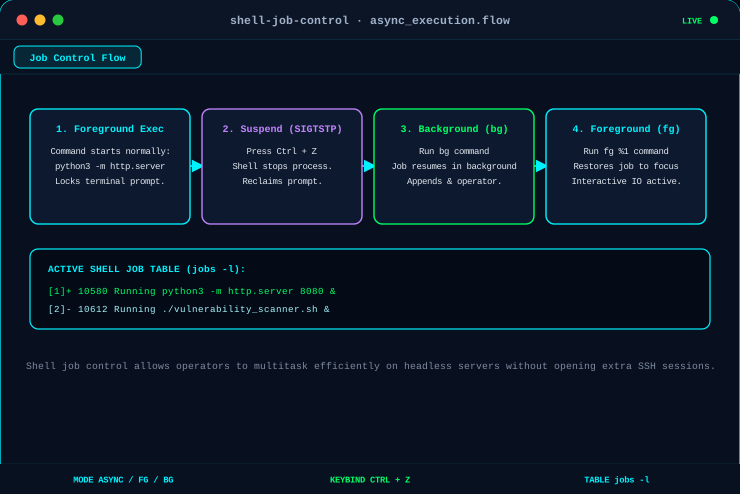
By default, terminal commands run in the foreground, locking the shell until execution completes. When launching graphical editors, listeners, or long-running scripts, running them in the background frees your terminal session immediately.
Launching in the Background with &
Appending an ampersand (&) instructs the shell to spawn the process in the background:
The shell prints the job number ([1]) and the kernel PID (10452), immediately returning control of your command line.
Suspending and Moving Active Foreground Tasks
If a program is already running in the foreground and you realize you need your terminal back:
- Press
Ctrl + Zto send aSIGTSTPsignal, which halts/pauses the process. - Execute
bgto resume the suspended task in the background.
Retrieving Jobs to the Foreground with fg
To pull a background job back into the foreground for interactive input, use fg (or fg %1 for specific job indices):
10. Process Scheduling: One-Off Tasks with at vs. Cyclic cron
Linux provides two distinct subsystems for scheduling future executions:
cron: Designed for recurring, cyclical schedules (daily database backups, weekly log rotations, hourly synchronization).at: Tailored specifically for one-time, non-repeating execution at a specified future timestamp.
Scheduling with at
The at utility reads commands from an interactive sub-prompt and enqueues them into the atd daemon spool:
The at command supports intuitive natural-language relative time offsets:
To inspect or remove scheduled jobs from the spool:
11. Why Process Management Matters in Cybersecurity
In digital forensics, threat hunting, and SOC analysis, processes are the primary mechanism through which adversaries execute malicious logic. Understanding process behavior allows analysts to detect anomalies that security software might miss:
1. Detecting Cryptojacking & Resource Anomalies
Illicit cryptocurrency miners immediately stand out in top by sustaining near 100% CPU utilization across all cores. Correlating the high-consumption PID with ps aux reveals the executing user and working directory (frequently hidden in /tmp or /dev/shm).
2. Spotting Ingress Web Shells & Reverse Shells
In a web server compromise, an attacker exploits an upload or RCE flaw to trigger a reverse shell. In ps aux, seeing an interactive shell (/bin/bash, sh, python3 -c ...) spawned under the service account www-data or apache is an immediate High/Critical incident indicator.
3. Unmasking Masquerading Binaries
Adversaries frequently rename malware to look like legitimate system daemons (e.g., [kworker/0:0] or sshd). By inspecting the binary path via ls -l /proc/<PID>/exe and comparing PPIDs, analysts can distinguish kernel threads from disguised userland implants.
4. Offensive Security Orchestration
For penetration testers working on Kali Linux, process control enables seamless backgrounding of network listeners (nc -lvnp 4444 &), automated scanning campaigns via at, and CPU nice throttling to prevent intrusive security scanners from crashing fragile target endpoints.
12. Hands-on Security Lab: 7 Practical Exercises on Kali Linux
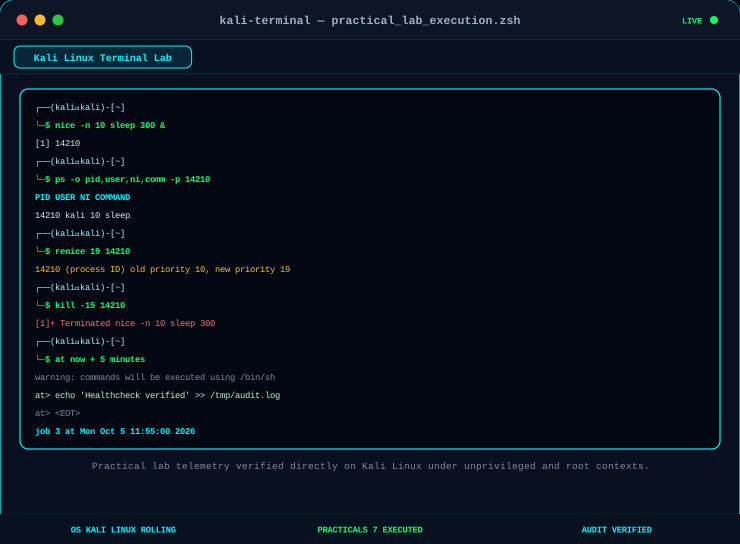
Theory only transforms into instinct when verified practically at the terminal. Below is the full step-by-step walkthrough of the practical lab exercises executed in Kali Linux:
Objective: Compare basic session-level process output against global system telemetry and document resource metrics.
Deliverable: Record 3 distinct processes, noting their PID, executing USER, and corresponding %CPU and %MEM values.
Objective: Use UNIX pipes and pattern filtering to locate a specific security binary without manual scrolling.
Deliverable: Note how the regex bracket trick prevents grep from returning its own searching process in the telemetry stream.
Objective: Launch top, monitor real-time resource utilization, identify the most resource-intensive process, and exit cleanly.
Deliverable: Document system load averages across 1m, 5m, and 15m intervals.
Objective: Launch a harmless test process with an explicit nice offset, inspect its priority, and dynamically alter it using renice.
Deliverable: Confirm that the PID priority updated to 19 without interrupting execution.
Objective: Compare graceful signal termination against forced kernel SIGKILL.
Deliverable: Observe how the shell reports Terminated for SIGTERM versus Killed for SIGKILL.
Objective: Demonstrate transitioning an active command between foreground and background states.
Deliverable: Successfully reclaim the shell prompt without aborting the running binary.
Objective: Schedule a future command using at, inspect the queue, and verify creation.
Deliverable: Verify scheduled job registration via atq.
13. Key Commands Reference Matrix
Keep this quick-reference matrix accessible during Linux investigations, CTF challenges, and host hardening audits:
| Command Syntax | Primary Purpose | Standard Operational Context |
|---|---|---|
ps |
View current terminal processes | Quick session-level check of immediate child tasks. |
ps aux |
View all system processes | Global audit across all users and detached system daemons. |
ps aux | grep <name> |
Filter process list | Isolating specific binaries, scripts, or suspicious paths. |
top |
Real-time telemetry monitor | Live tracking of CPU, memory, load averages, and runaway processes. |
nice -n <val> <cmd> |
Start process with priority | Throttling heavy scans (+10) or boosting critical captures (-10). |
renice <val> <PID> |
Modify running priority | Deprioritizing resource-heavy processes without service restart. |
kill <PID> |
Send SIGTERM (15) to PID | Standard, polite termination allowing clean resource release. |
kill -9 <PID> |
Send SIGKILL (9) to PID | Forceful termination for hung or malicious uncatchable processes. |
killall <name> |
Terminate processes by name | Batch termination across multiple threads or spawned workers. |
<command> & |
Start in background | Freeing interactive terminal immediately upon execution. |
Ctrl + Z + bg |
Suspend & background | Rescuing an active terminal from an un-backgrounded process. |
fg [%job] |
Bring to foreground | Restoring terminal interaction to a backgrounded task. |
at <time> |
Schedule one-time job | Executing delayed scripts without configuring recurring cron jobs. |
atq / atrm <id> |
Inspect / cancel at jobs | Managing scheduled execution queues and clearing pending runs. |
Final Reflection & Assurance Field Takeaways
Linux process management is often treated as a junior sysadmin checklist, but in production environments and incident response, it is the foundational lens through which all host activity is observed.
A sophisticated adversary rarely lands on a host and leaves no footprint. They compile binaries, inject shared libraries, launch reverse shells, spawn miners, or schedule persistence via cron or at. Understanding how to query PIDs, inspect resource ratios, trace command line strings, and gracefully or forcefully terminate processes gives security practitioners total control over the host.
Defensive Assurance Principle
Visibility before action. Signals before force. Verify after kill.
Always inspect before terminating, attempt graceful SIGTERM before SIGKILL, and verify the PID table to confirm total containment.
Skills Demonstrated: Linux System Administration · Kali Linux · Process Telemetry · POSIX Signals (SIGTERM, SIGKILL, SIGHUP) · CPU Scheduling (nice, renice) · Shell Multitasking & Job Control · Task Scheduling (at, cron) · Incident Triage · Threat Hunting · Cybersecurity Assurance